Auto-Fill from the MLB Live Feed#
Auto-fill is BaseballScorer’s way of helping you keep up when the game moves faster than your pen. Connected to MLB’s live data feed, the app can fill in the result of any at-bat it has data for — the outcome, fielding sequence, RBIs, and runner movements — instantly and accurately.
What Gets Auto-Filled#
When BaseballScorer auto-fills an at-bat, it populates:
- The outcome — hit type (single, double, etc.), out type (groundout, flyout, strikeout), walk, error, fielder’s choice
- The fielding sequence — which fielders handled the ball (e.g., 6-3 for shortstop to first base)
- RBIs — any runs driven in on the play
- Runner movements — which baserunners advanced or scored, and how
What it does not fill in:
- Pitch sequences — The ball/strike count and individual pitches aren’t available in the live feed for most games. You score those manually.
- Pitch types and velocities — Not in the public feed.
Auto-fill gives you the what without the how. The outcome is there; the story of the at-bat — the full count, the pitcher painting the corner on strike three — that part is still yours to record.

How Matching Works#
BaseballScorer matches at-bats from the feed to your scorecard by batter and inning. When you trigger a catch-up, the app walks through the feed in order, finds each play that corresponds to an unscored slot in your lineup, and fills it in.
If you’ve already scored a play manually, auto-fill skips it. It only fills plays where you haven’t entered anything yet. Your manual scoring is never overwritten by auto-fill — that’s what reconciliation is for.
The Blue Arrow Indicator#
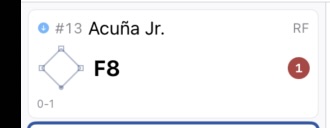
Every auto-filled at-bat card gets a blue arrow icon. This is your at-a-glance signal that the data came from the feed rather than from your own scoring.
Why does this matter? A few reasons:
- You might want to go back and add pitch sequences to auto-filled plays. The blue arrow tells you which ones to check.
- If you’re using BaseballScorer to practice, seeing how many blue arrows vs. manually scored plays you have tells you how closely you were following along.
- If something looks wrong on a card, knowing it was auto-filled (vs. something you entered) helps you know where to look.
When an at-bat has been scored manually and then confirmed against the feed through reconciliation, the icon changes from a blue arrow to a blue sync icon. See Scoring Along with Live MLB Games for how reconciliation works.
When to Use Auto-Fill#
You fell behind during the game. This is the most common use case. You were scoring along, got pulled into conversation during the third inning, and now you’re two batters behind. Tap Next Play once or twice to catch up, then continue scoring manually.
You missed an entire half-inning. Tap All on the catch-up banner to pull in everything from the live feed at once. Review the auto-filled cards, add any detail you want, and keep going.
You’re starting a game already in progress. You didn’t catch the first inning on TV, but you want to score the rest of the game. Tap All to fill in what you missed, then start scoring manually from where the feed ends.
You skipped ahead and have gaps. Tap Fill Gaps to backfill all missing (?) plays from the MLB feed without touching anything you’ve already scored.
You want a complete record of a finished game. Open a completed game and tap All. You’ll have a full scorecard in seconds, ready to review or annotate.

Auto-Fill vs. Manual Scoring#
Auto-fill and manual scoring produce equivalent results on the scorecard — the notation, the fielding sequence, the outcome are all the same. The only difference is the blue arrow indicator and the absence of pitch sequences in auto-filled plays.
If you want the full scorecard experience — every pitch, every count, the rhythm of the at-bat — score manually and use auto-fill only as a safety net. If you just want an accurate record of outcomes and don’t need the pitch-by-pitch detail, auto-fill can handle a lot of the work for you.
Either approach is valid. BaseballScorer is designed for how you want to score, not how some rulebook says you should.